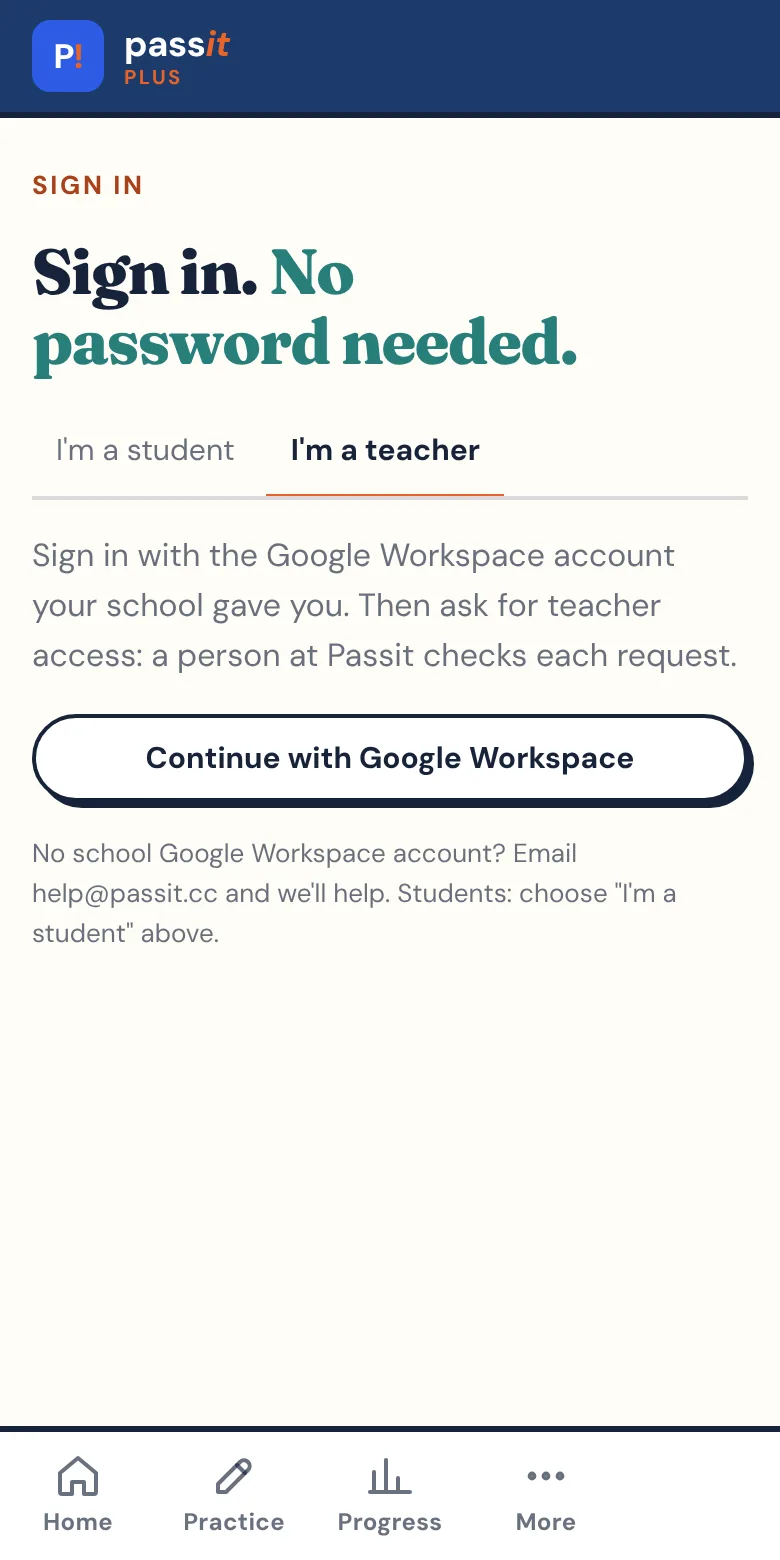
Tap Continue with Google Workspace and choose your school account.
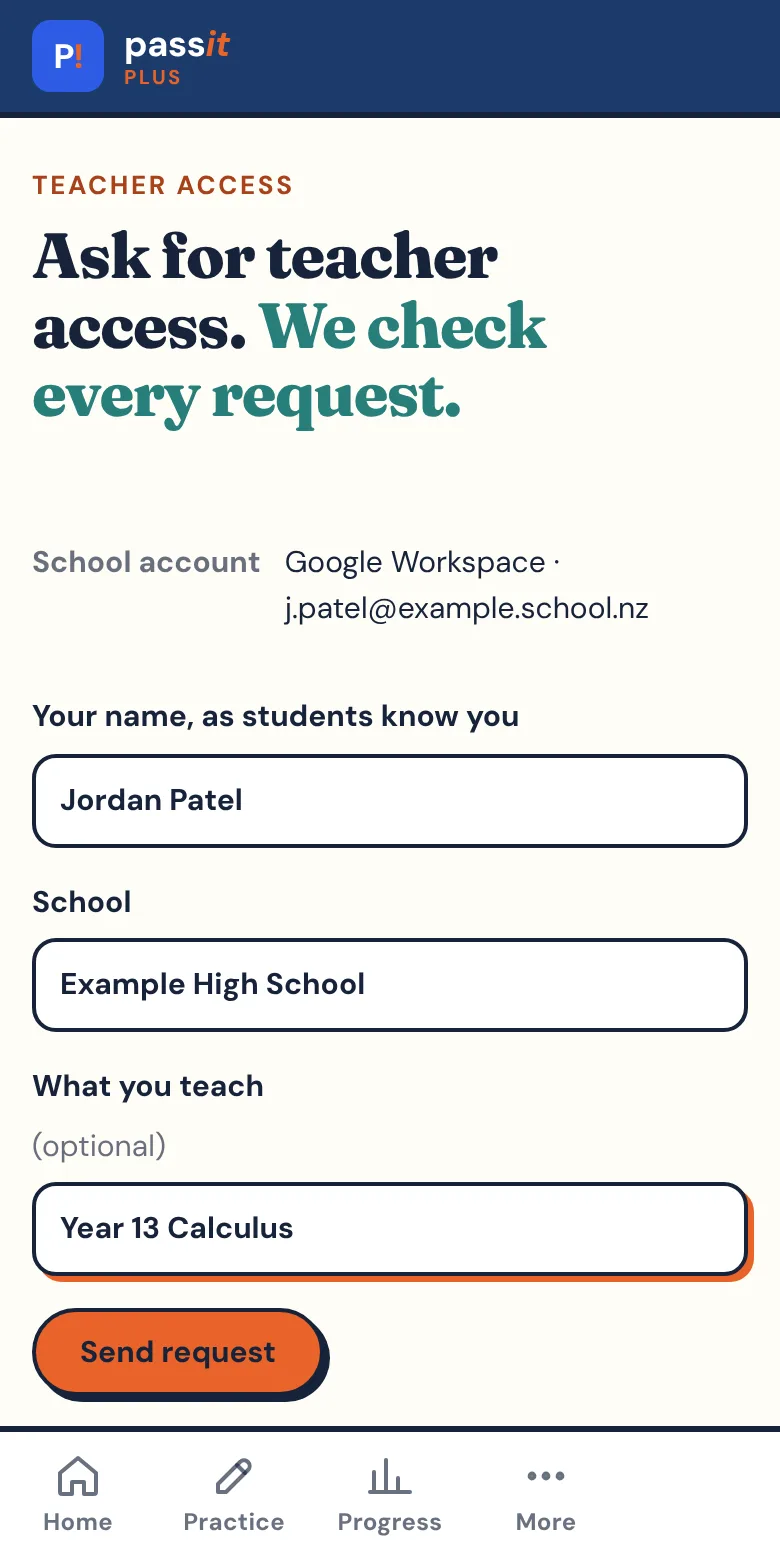
Enter your name as students know you, your school, and what you teach (optional).
Tap Send request.
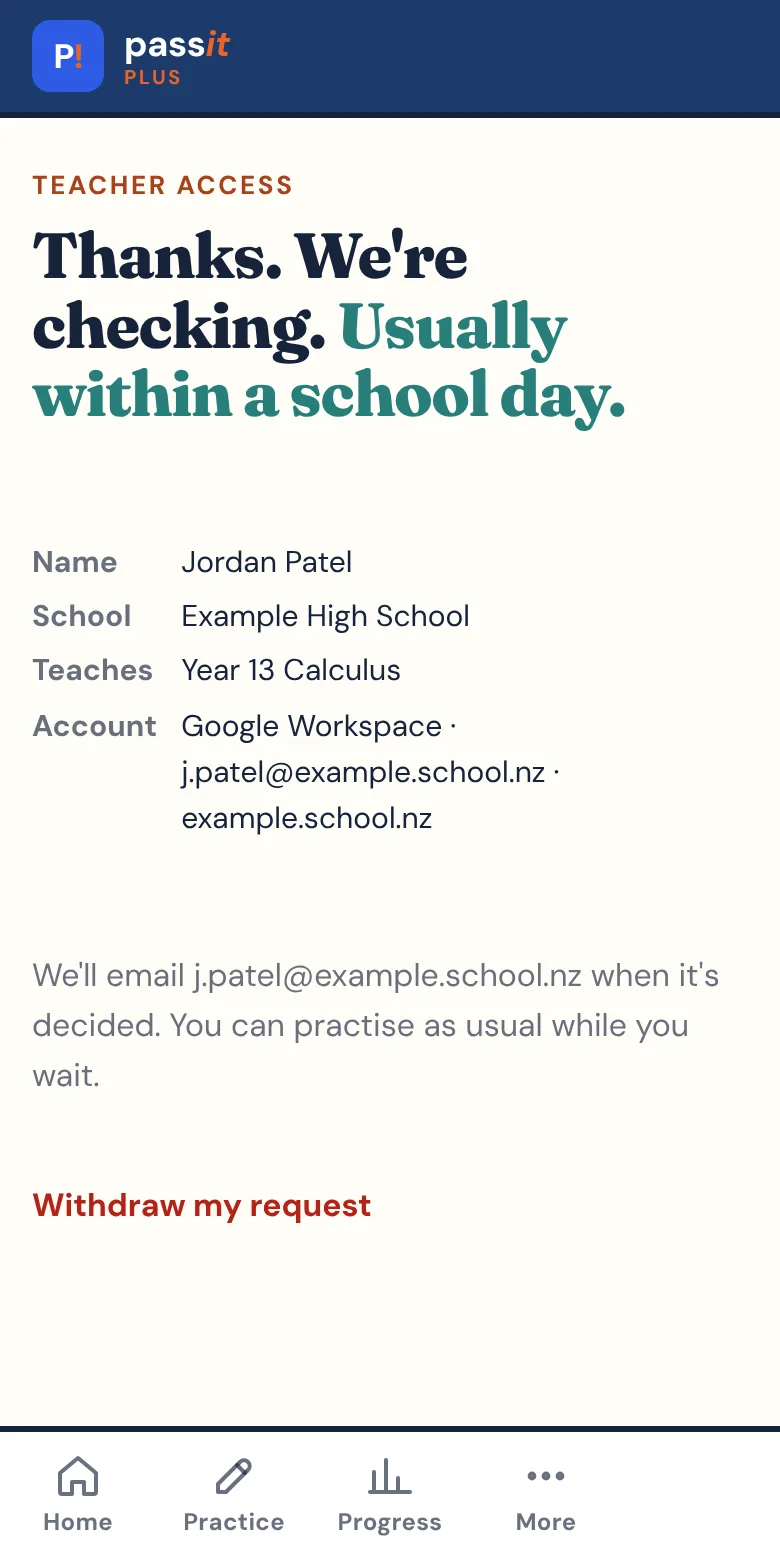
Wait for our email. You can practise as usual while you wait, or tap Withdraw my request.
No school Google Workspace account? Email help@passit.cc and we'll help. A personal account can't ask for teacher access.
1–2 I'm a teacher3–4 The request form5 While we check
2Already have a student account?
Sign in as usual and tap More.
Tap Are you a teacher? Ask for teacher access.
Tap Link Google Workspace and choose your school account.
Fill in the form and tap Send request.
Tip. After linking, you can sign in with either account. Keep a personal account linked so you keep your pass and progress when you leave the school.
3After you're approved
Open the link in our email, or go to More and tap Teacher area.
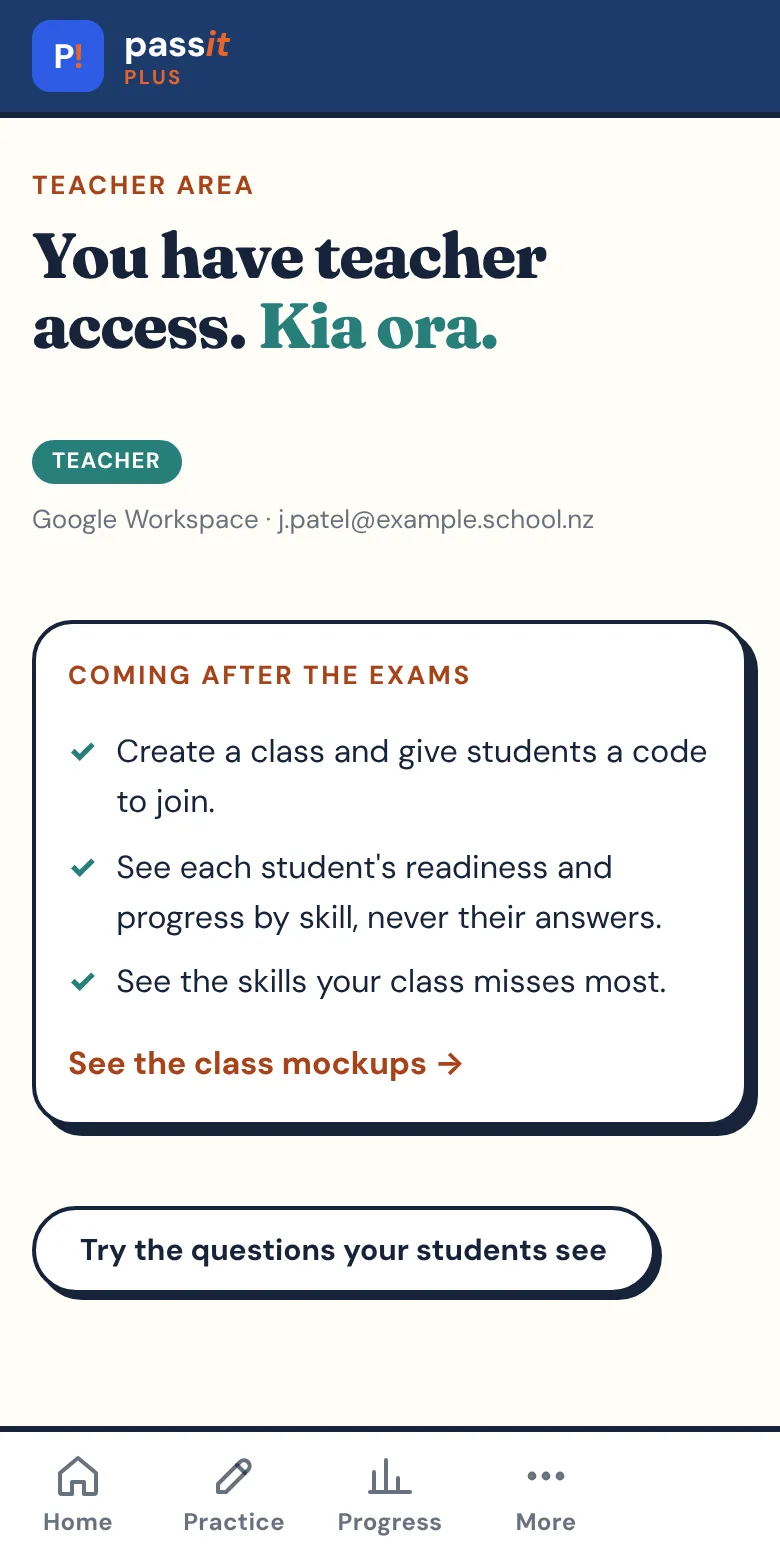
Tap Try the questions your students see to use Passit as a student would.
Tap See the class mockups to preview the class tools.
Coming after the exams. Create a class with a join code. See each student's readiness and progress by skill, never their answers. See the skills your class misses most.
Declined? The reason shows on the teacher page. Fix it, for example by asking from your school account, and send the request again.
1 The teacher area
Screenshots come from a test copy of Passit with sample accounts. Names, emails and numbers are examples. Questions? Email help@passit.cc.